

How to Delete Cookies to Fix Browser Issues
Have you ever experienced a website that won’t load properly, keeps logging you out, or displays outdated information? In many cases, the culprit is a corrupted or outdated browser cookie. Deleting cookies can often resolve these frustrating browsing problems and improve your overall online experience.
What Are Browser Cookies?
Cookies are small text files that websites store on your device. They help websites remember information such as your login credentials, language preferences, shopping cart contents, and other personalized settings.
While cookies are generally useful, they can sometimes become outdated, corrupted, or conflict with website updates, leading to browsing issues.
Common Problems Caused by Cookies
You may want to clear your cookies if you experience:
- Websites failing to load correctly
- Login issues or repeated sign-in prompts
- Pages displaying outdated content
- Shopping carts are not updating properly
- Website errors after a site redesign or update
- Slow browsing performance on specific websites
Benefits of Deleting Cookies
Clearing cookies can help:
- Resolve website loading errors
- Fix authentication and login problems
- Improve website performance
- Refresh personalized settings
- Enhance privacy by removing stored tracking data
Keep in mind that deleting cookies will sign you out of most websites, so be sure you know your login credentials before proceeding

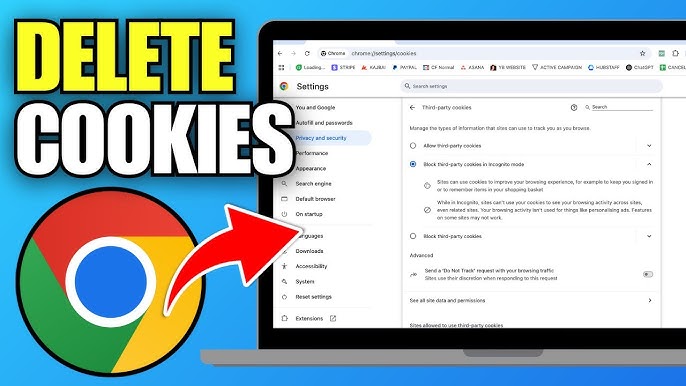
How to Delete Cookies in Google Chrome
- Open Chrome.
- Click the three-dot menu in the upper-right corner.
- Select Settings.
- Click Privacy and Security.
- Choose Delete Browsing Data.
- Check the box labeled Cookies and other site data.
- Select your preferred time range.
- Click Delete Data.
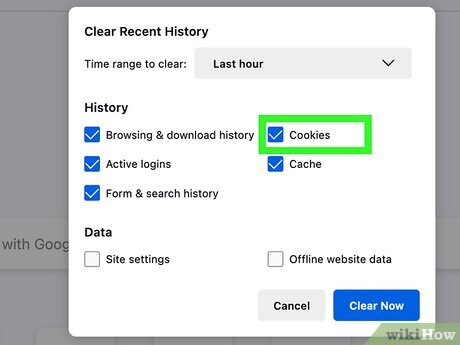
How to Delete Cookies in Mozilla Firefox
- Open Firefox.
- Click the menu button (three horizontal lines).
- Select Settings.
- Click Privacy & Security.
- Scroll to Cookies and Site Data.
- Click Clear Data.
- Select Cookies and Site Data.
- Click Clear.
How to Delete Cookies in Microsoft Edge
- Open Edge.
- Click the three-dot menu.
- Select Settings.
- Choose Privacy, Search, and Services.
- Under Clear Browsing Data, click Choose What to Clear.
- Check Cookies and Other Site Data.
- Select a time range.
- Click Clear Now.
How to Delete Cookies in Safari
On Mac
- Open Safari.
- Click Safari in the menu bar.
- Select Settings or Preferences.
- Open the Privacy tab.
- Click Manage Website Data.
- Choose individual websites or select Remove All.
On iPhone or iPad
- Open Settings.
- Scroll down and tap Safari.
- Select Clear History and Website Data.
- Confirm your choice.
Should You Delete All Cookies?
Not necessarily. Most modern browsers allow you to delete cookies from specific websites rather than clearing all stored data. This approach helps preserve login information and preferences for sites that are working correctly.
If you’re troubleshooting a problem with a particular website, clearing cookies only for that site is often the best option.
Additional Troubleshooting Tips
If deleting cookies doesn’t solve the issue, try:
- Clearing your browser cache
- Updating your browser to the latest version
- Turning off browser extensions temporarily
- Restarting your browser or device
- Testing the website in an incognito/private browsing window
Conclusion
Cookies play an important role in making websites more convenient and personalized, but they can occasionally cause browsing problems. Clearing cookies is a simple and effective troubleshooting step that can resolve login issues, website errors, and performance problems. Knowing how to delete cookies in your browser can quickly restore a smoother, more reliable browsing experience.